Adding Players to a Team RosterUpdated 8 months ago
Coaches and players should have all created their profiles before this steps. For more information about how to do those steps, look at these articles:
- Downloading the HELIOS App
- App Setup
- Creating a Player Profile
- Creating a Coach Profile
When Cores and Team Case have arrived:
- Label the Cores
- Each player labels the physical Core they'll always use
- Scan Core
- PROFILE > QR CODE > SCAN > SCAN THE SMALL QR CODE ON THE CORE
- Navigate to "MY CODE"
- PROFILE > QR CODE > MY CODE
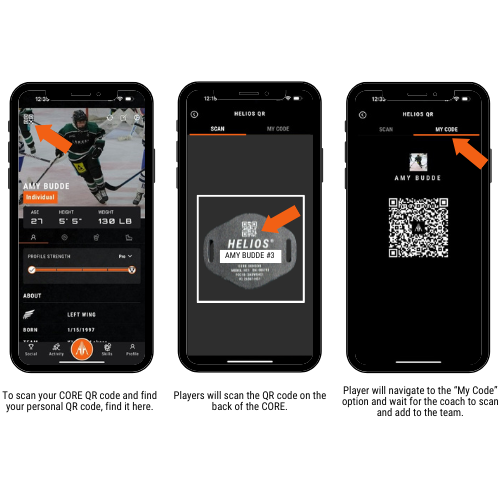 **Player now waits for the Coach to come around and add all players to roster.
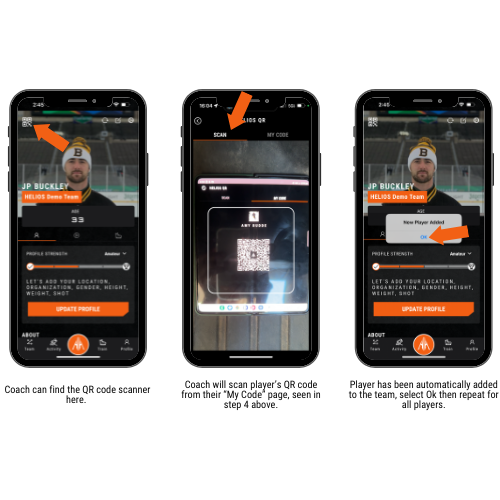
- Coach opens HELIOS QR Code
- PROFILE > QR CODE > SCAN
- Coach scans player's QR Code
- From the scan option, the coach lines the QR Code in the player's "MY CODE" screen with the camera square on their screen.
- Player is added to Team
- Once scanned, the app will automatically add the player to the roster and a pop up will say "NEW PLAYER ADDED"
**Coach repeats this with all players