
Uploading and Watching Video TeamsUpdated 8 months ago
HELIOS streamlines Shift Video for Players and Coaches by using skating activity from the Core sensor to cut shift and drill video.
To get shift video for players, the coach will need to upload the video to the HELIOS Web Dashboard.
Make sure all data has been sync'd from the Cores.
Log in to your Coaching Suite account on the Web Dashboard. This is app.helioshockey.com. Use the same login as the app.
Select Team Sessions on the left side bar.
Select Details next to the session you want to upload video for.
Scroll below the Game Utilization & Load Report - Select Add Session Video
Select Add Session Videos again.
Choose the video source, follow the instructions to either insert the link, upload the mp4, etc.
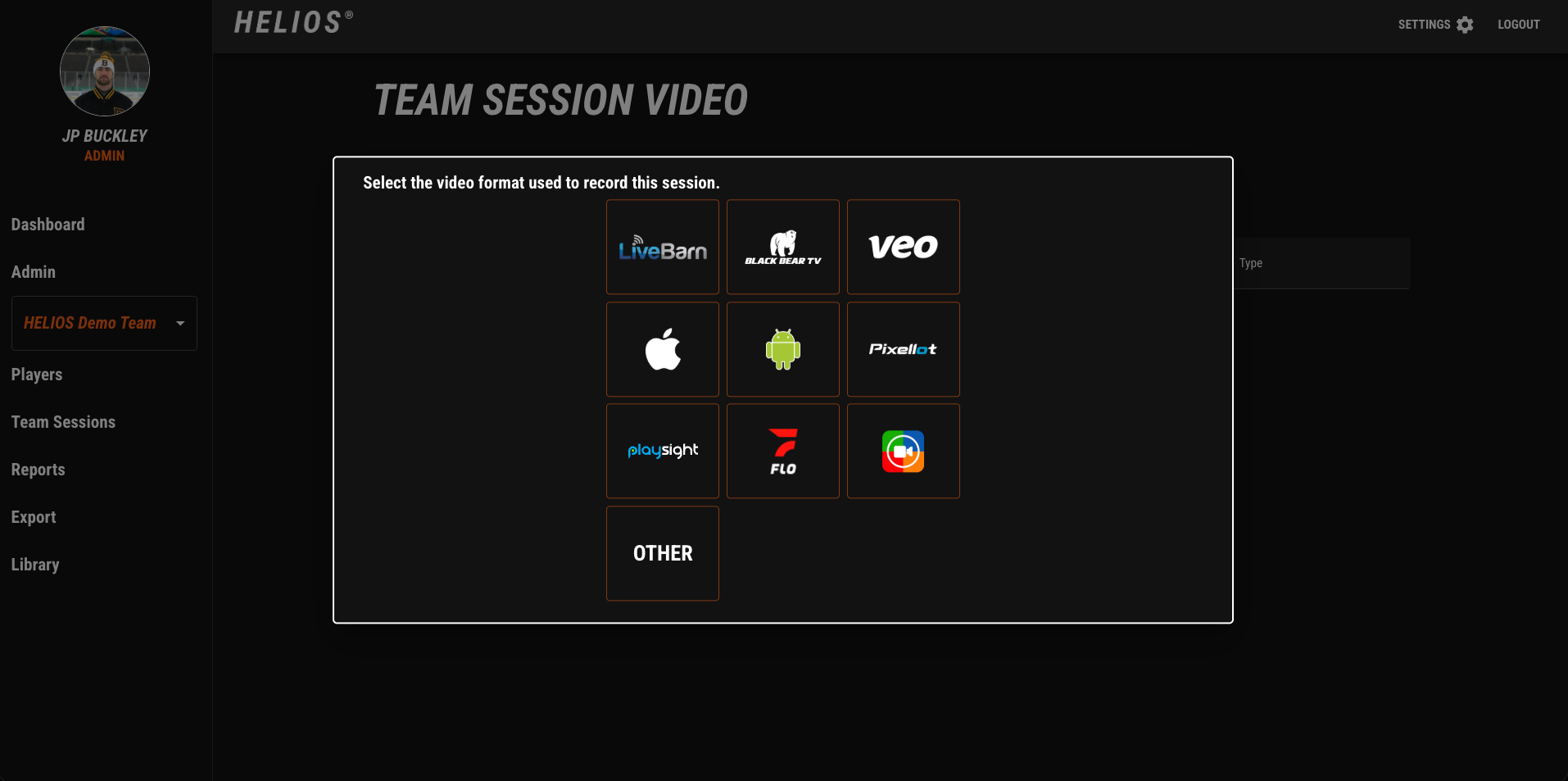
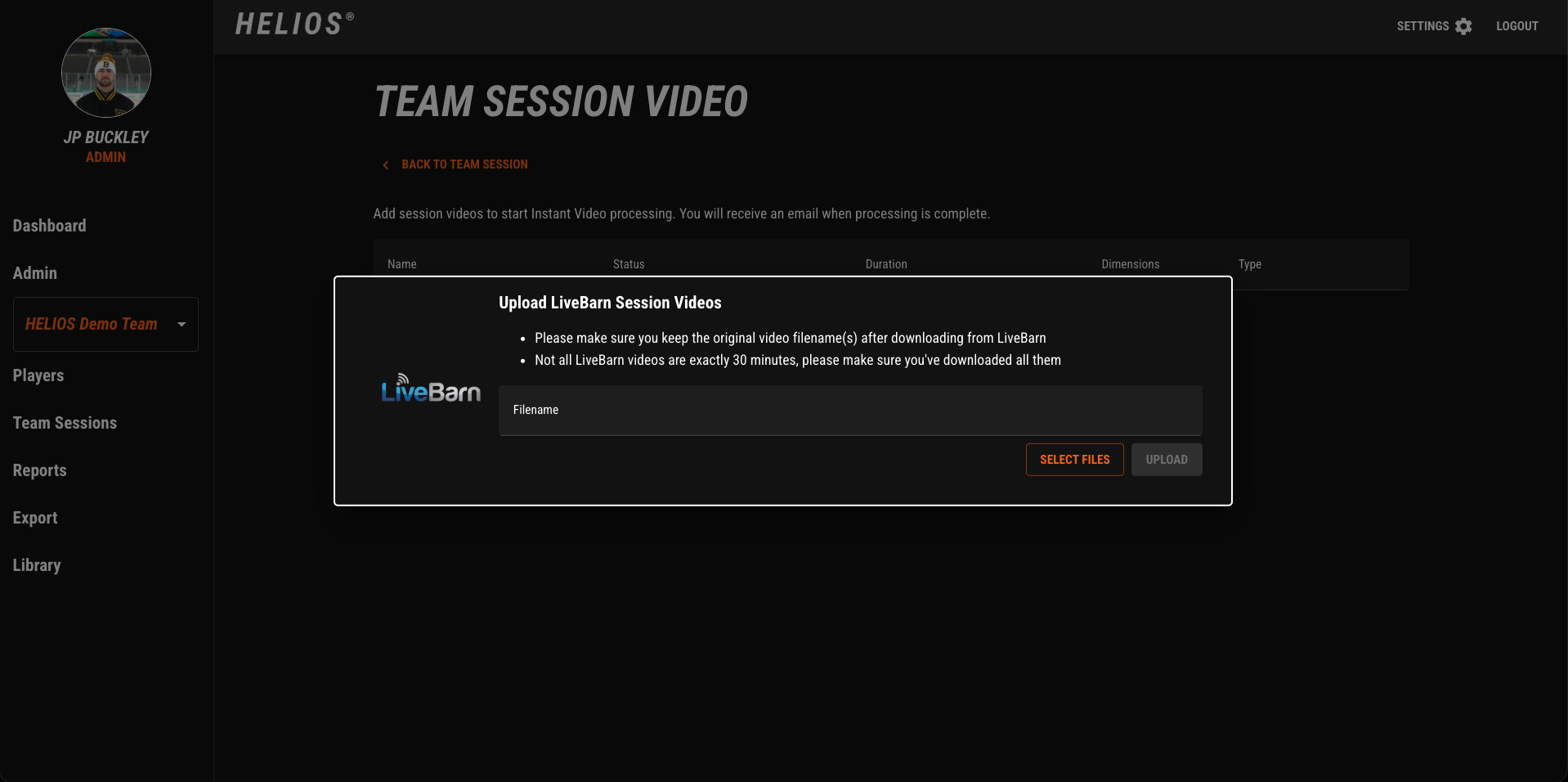
Once the video files have been uploaded, each player will have their shift videos instantly cut and distributed to their HELIOS App for viewing and instant feedback.
NOTE: If your video is not from an iPad/ iPhone, Livebarn, Veo, or Pixellot, you will need to Align Puck Drop tags to get shift videos cut. See Puck Drop Tag and Aligning Session Video articles for additional support.