
Update Team DevicesUpdated 8 months ago
Summary: Learn how to update your team devices so you can properly run Team Sessions and update to the latest firmware.
HELIOS is constantly working to develop the product into the best version possible. We are building new features and updating the software, which may require an action from the Coach.
Whether you are getting on the latest firmware version, setting up your team at the start of the year, or pairing external HRM devices, you'll need to run the Update Team Devices process.
When your team is all on the right firmware and configuration, the Cores will have a green check next to each name. When all cores have a green check, you are able to properly and confidently run Team Sessions.
Update Team Devices: Ensure that the Cores are back in the case, the case is plugged in, and SOLID green lights are showing on each charging pad.
The Coach will navigate to Profile > Settings (Gear Icon in Top Right) > Devices
You will see a list of all of you players with a Red X on the right.
Press the button at the top of the screen. The HELIOS system will automatically go through each Core and update the Firmware and Configuration settings.
Leave your device near the charger and do not navigate away from the HELIOS App while this process is underway. (Don't hard swipe up closing the App, or go into another App during the process). If you close out of the app, text, take a call, or go into other apps, the process will freeze and need to be restarted.
Note: Ensure you have a strong WiFi or cell signal, as slow connectivity will dramatically increase the time it takes to complete this step. Have your device (phone or iPad) plugged into a charger to avoid the screen going to sleep while updating.
Once the process is complete, the Red X next to each name will convert to a Green Check.
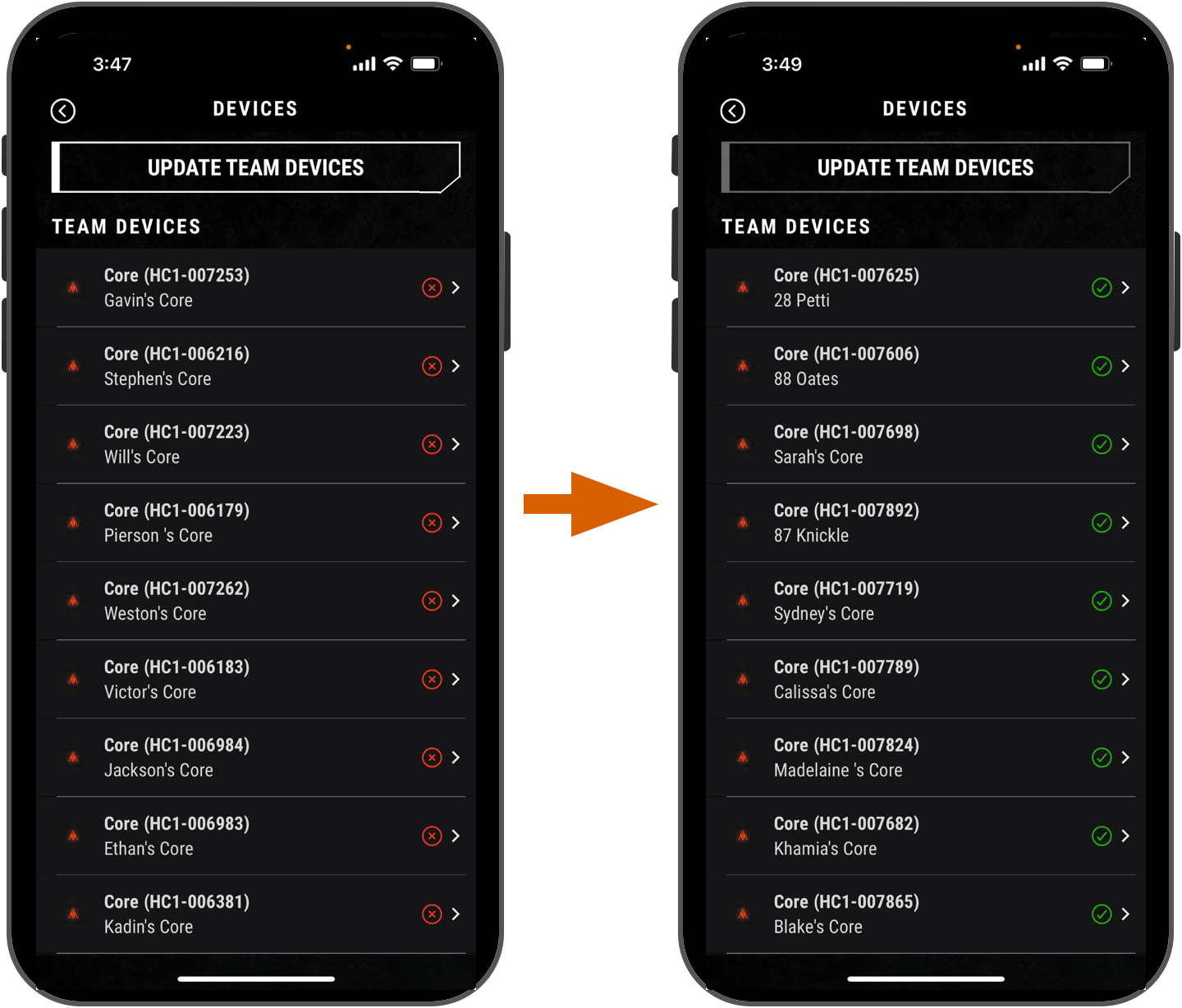
When everyone has a Green Check, you are ready to run Team sessions. Any player who does not have a green check will not be able to join Team sessions.