
Remove Players From Roster and Unpair CoresUpdated 8 months ago
Summary: Training on how to handle updating the Team Roster when Players join or leave in the middle of the season, or at the end of the year.
There are many situations where you will need to update your roster, add or remove players, or unpair Cores to give to new players. For example, if players get traded midway through the season or at the end of the year, updating the team roster when some players do not return.
There are two options when editing your roster:
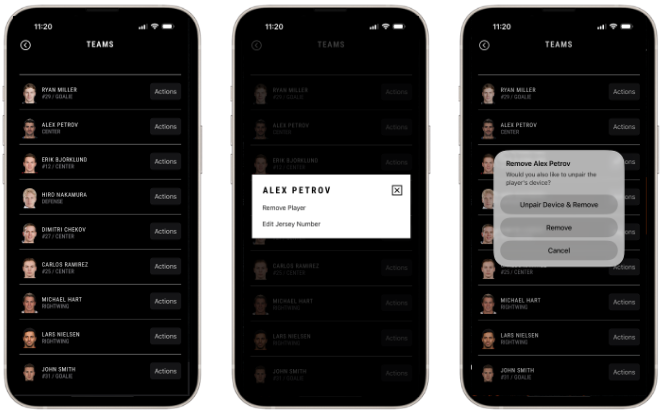
Remove Player and Unpair Core - This will remove a player from your team roster and also unpair the Core from that player’s account. You will use this option when you plan to keep the Core Sensor and redistribute it to a different player.
Remove Player - This simply removes a player from your roster but keeps the Core assigned to that player. This option is used when the player plans to keep his Core Sensor and continue using it. They will need to pay for their own HELIOS Membership in order to continue using the platform.
Steps in the HELIOS App
Navigate to the Teams Page: From your Coach Account, navigate to Profile > Settings > Teams > Select your Team.
Find the Player(s) Name in the List: You will have a list of players with “Actions” next to their names. Find the player that you want to remove from your team and select Actions.
Remove Player: A box will appear with two options: Remove Player and Edit Jersey Number. Select Remove Player.
Decide Which Option is Best: Another box will appear with two options: Unpair Device & Remove or Remove.
Select the appropriate option based on the description above.
If you select the wrong option, please send an email to [email protected] with the name and picture of the back of the core (or the SN Number on the back “HC-________”) requesting additional support.