
How-To: Tag, Comment, & AnnotateUpdated 38 minutes ago
With HELIOS App 5.0.0 or later, players and coaches can tag a moment in any shift or drill video, add a comment, and draw on the play. Everything you add is saved to that exact moment in the video.
Open a video
- Tap the Videos tab.
- Under Sessions, tap a session, then pick a shift or drill run.
- Turn your phone sideways for the best view.
Three buttons sit in the top right corner of the video:
- Pencil: quick draw on the video
- Arrows: fit the video to your screen
- Plus (+): add a tag or comment
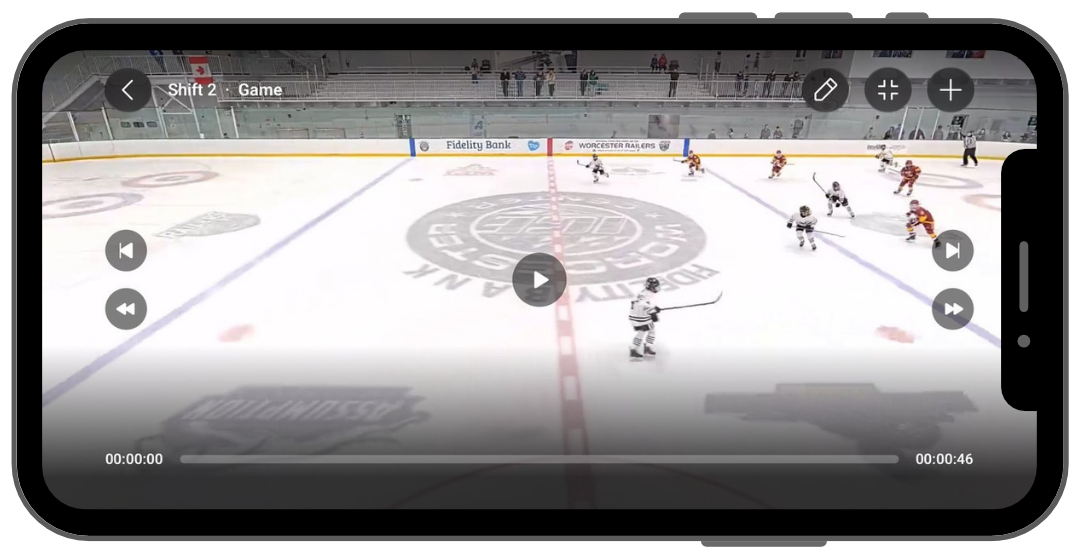
Tag a moment
- Pause the video at the moment you want to tag.
- Tap the plus (+) button.
- Tap one or more tags. Tags are grouped into Scoring, Events, Zone Play, Pressure, Special Teams and Personal.
- Some tags ask a follow-up question, such as For or Against. Pick an answer or tap Skip.
- Tap Save.
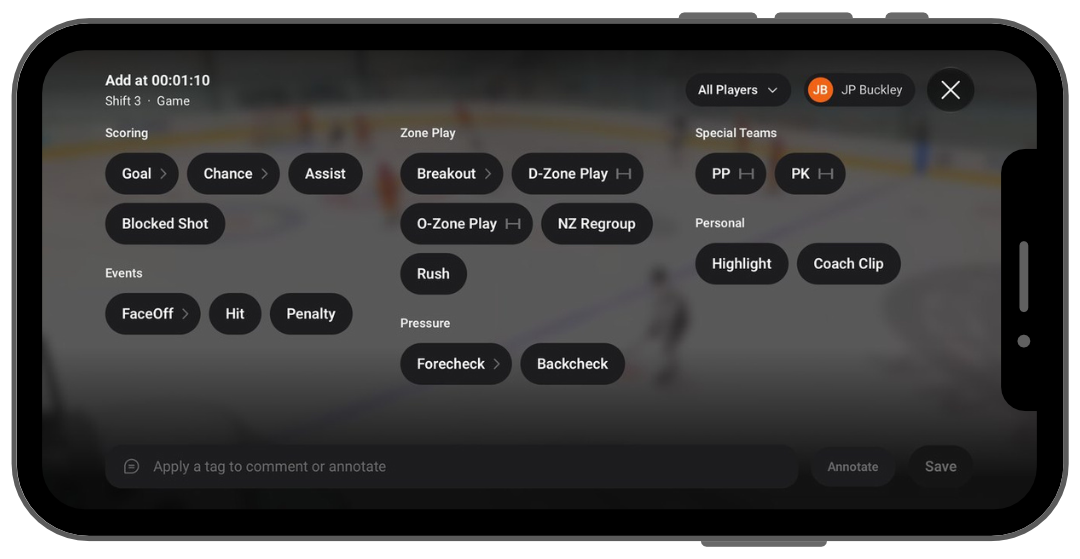
Coaches: use the dropdown at the top of the tag screen to choose All Players or only the player you are watching.
Tag a longer play
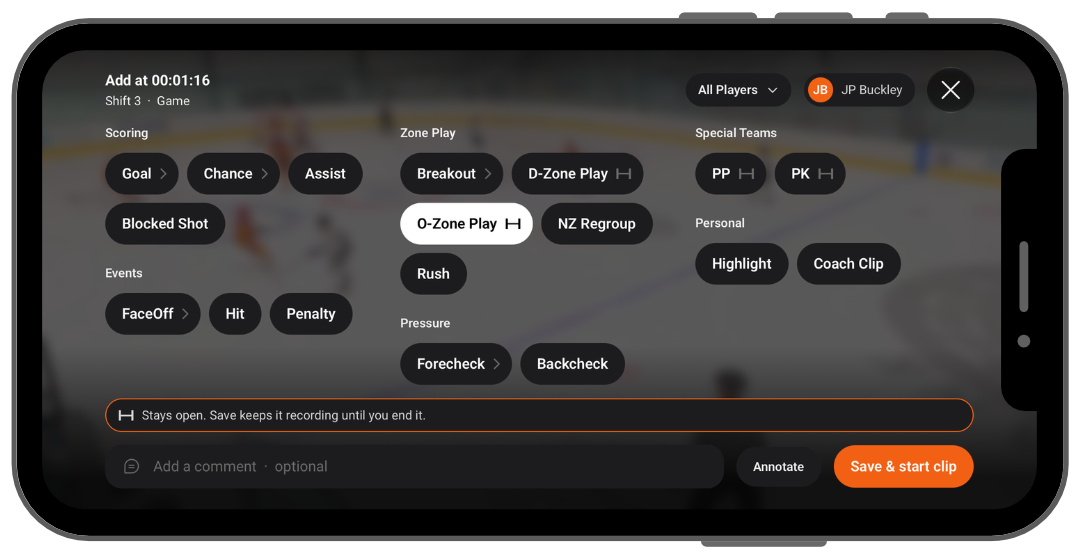
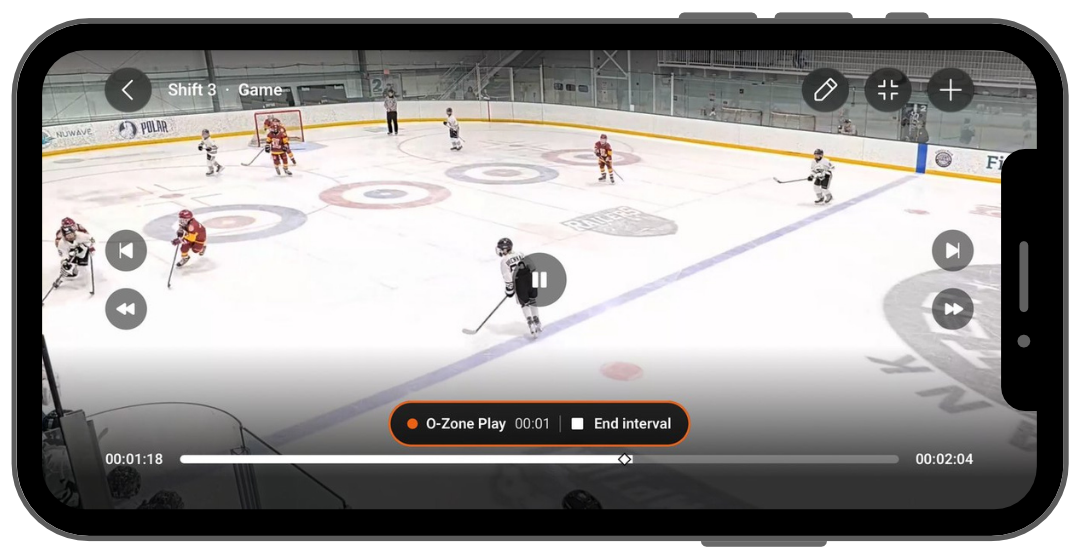
Some tags, such as O-Zone Play, D-Zone Play, PP and PK, cover a stretch of time instead of a single moment.
- Pause where the play starts and tap the plus (+) button.
- Tap the tag, then tap Save & start clip.
- Let the video play. Tap End interval when the play is over.
- Add a comment if you want one, then tap Save.
Add a comment
- Choose at least one tag first. A comment always goes with a tag.
- Tap the comment box and type your note.
- Tap Save.
[IMAGE: helios-5-comment.jpg]
Tip: keep comments short and specific, like "Keep skating. Drive the net."
Annotate (draw on the play)
- Choose at least one tag first.
- Tap Annotate.
- Pick a tool from the toolbar, from left to right:
- Color
- Freehand line
- Arrow
- Spotlight
- Circle
- Text
- Draw on the video. Use the undo and redo arrows to fix a mistake.
- Tap the check mark when you are done, or the X to cancel.
- Tap Save.
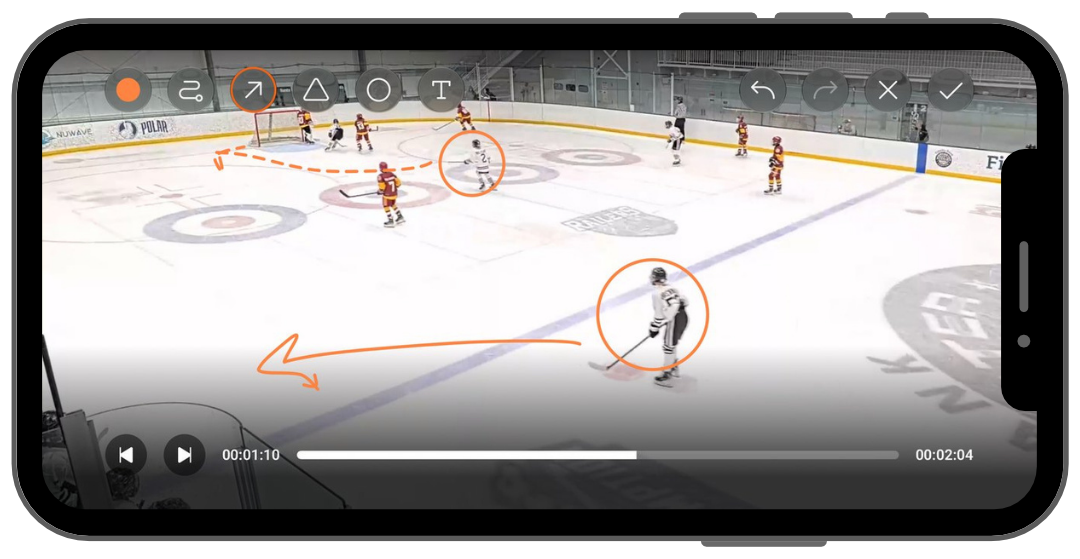
To change a drawing before you save, tap Edit annotation.
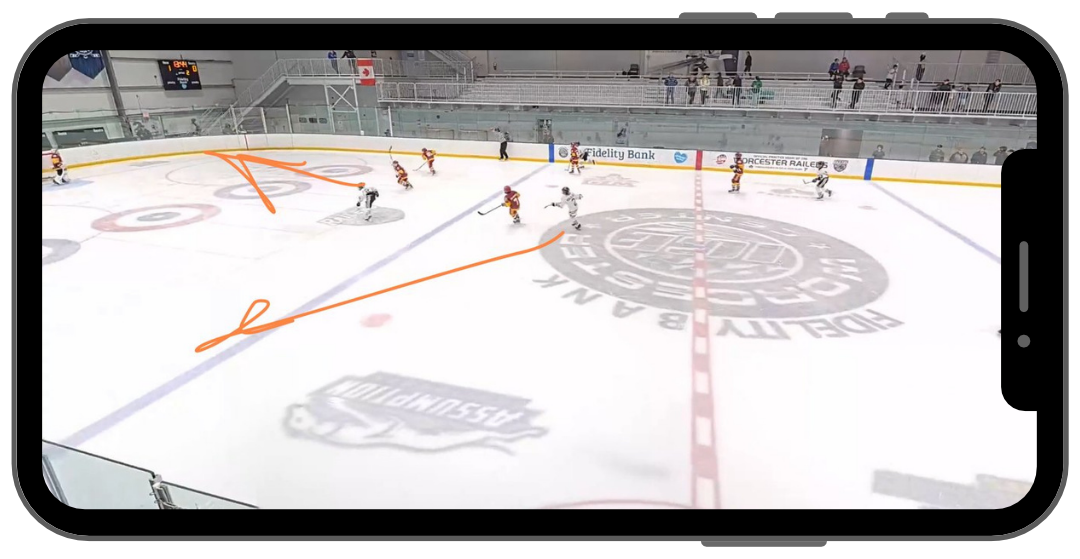
Quick draw
Want to point something out without saving it? Pause the video, tap the pencil button and draw with your finger. The lines disappear when the video starts playing again.
Watch tags, comments and drawings
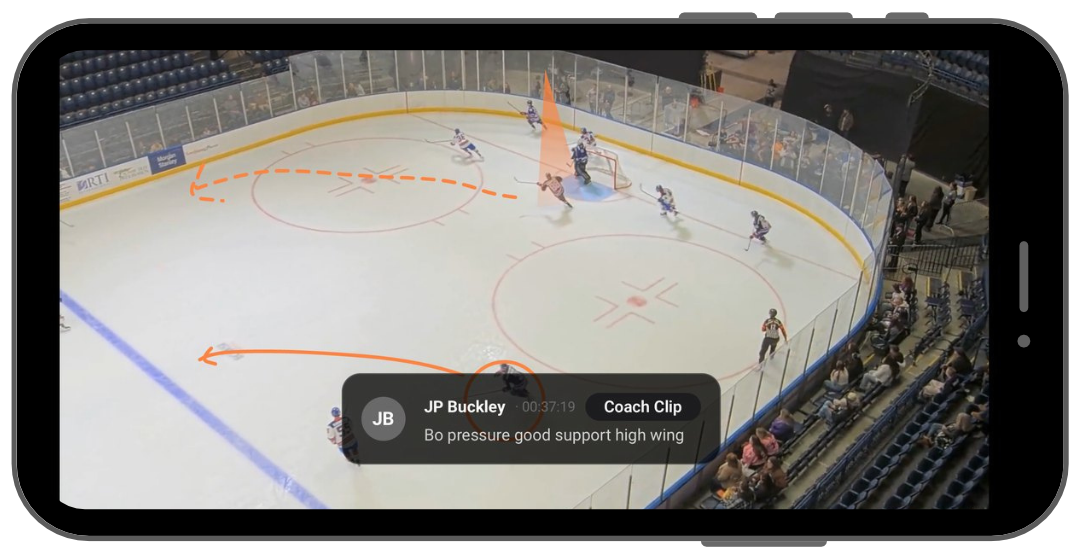
- Saved moments show as markers on the video timeline. Tap a marker to jump to it.
- Comments and drawings appear on screen when the video reaches that moment.
- Every tagged clip is also saved in Videos > Library.
Who can see what I add?
- Players: your tags, comments and drawings are private unless you share them in a playlist.
- Coaches: the player sees what you add to their video by default.
See How-To: Create & Share Playlists for sharing steps.
Need help? Email [email protected].