
How-To: Create & Share PlaylistsUpdated 35 minutes ago
A playlist is a set of tagged clips in the order you choose. Players can collect every goal from the season. Coaches can build a game review to share with one player or the whole team.
Clips stay in your Library. A playlist only points to them, so the same clip can be in more than one playlist.
Before you start
Only tagged clips can be added to a playlist. See How-To: Tag, Comment, & Annotate.
Create a playlist
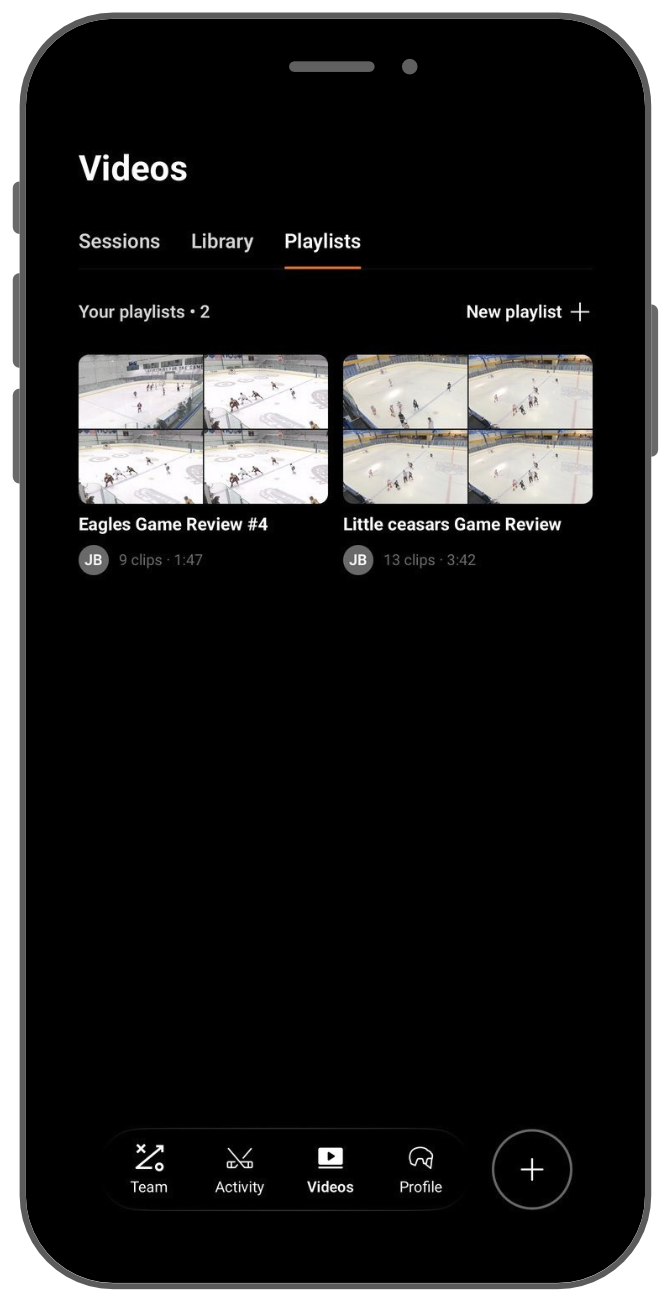
- Tap the Videos tab.
- Tap Playlists at the top.
- Tap New playlist in the top right corner.
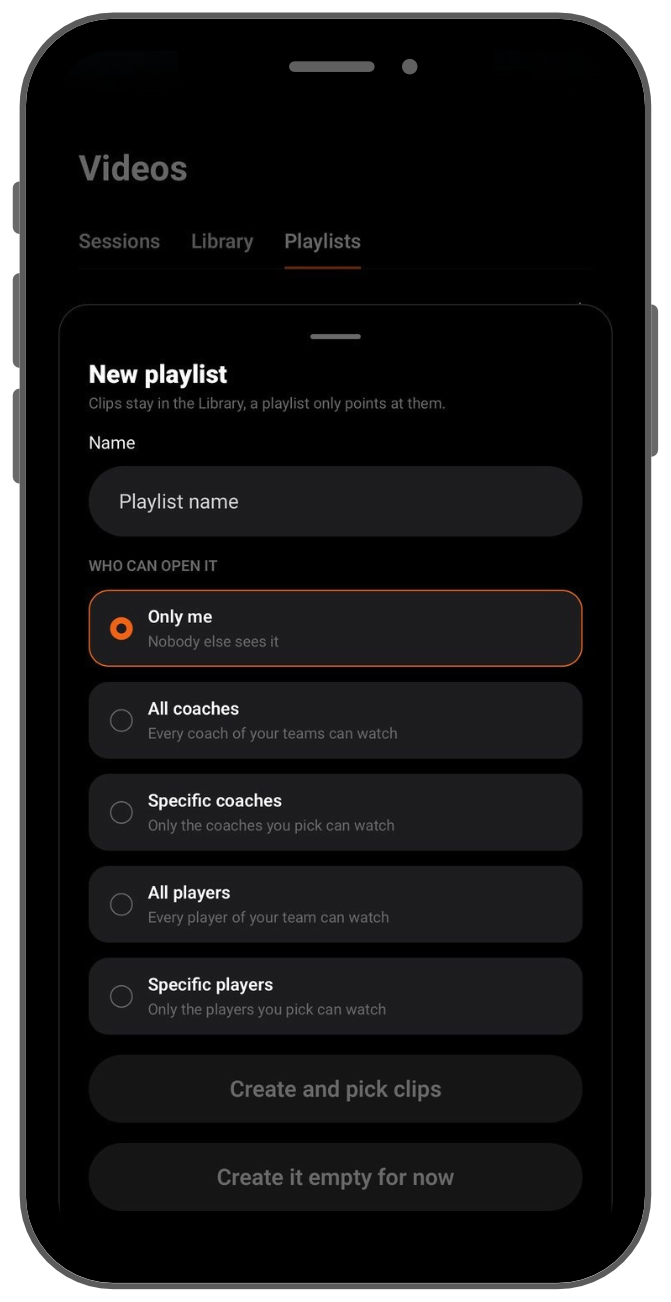
- Type a name for the playlist.
- Under Who can open it, choose who to share it with (see Sharing below).
- Tap Create and pick clips to add clips now, or Create it empty for now to add them later.
Add clips
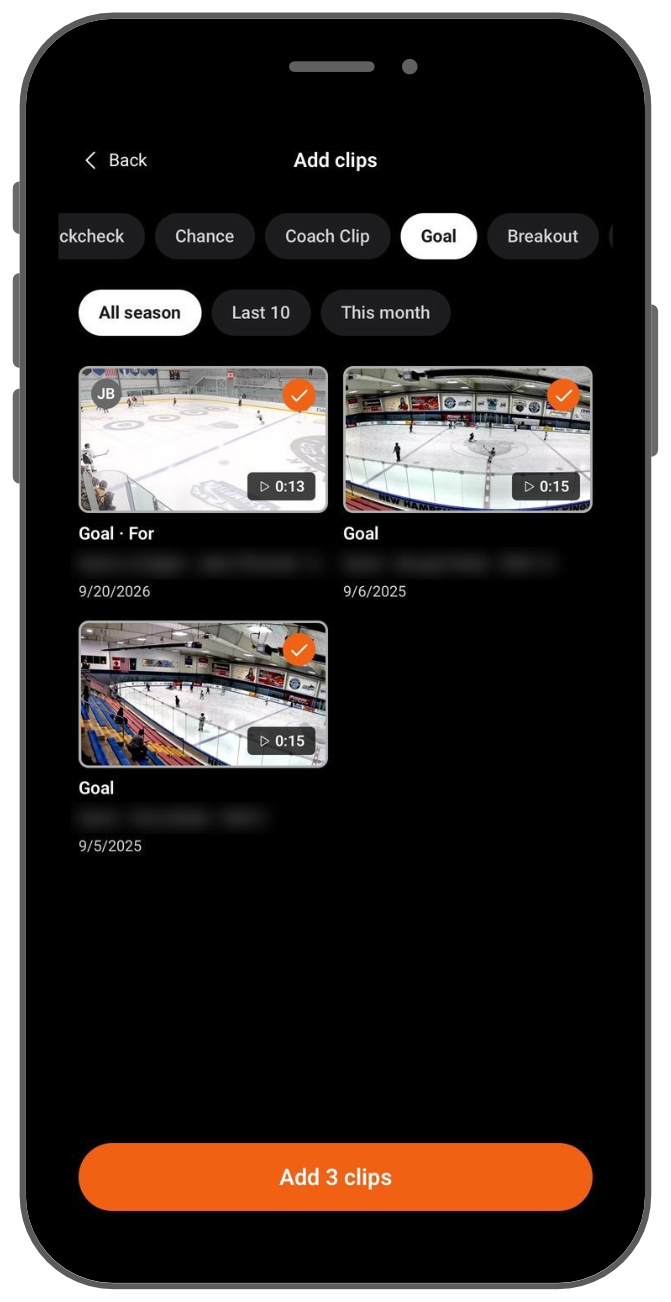
- Tap a tag at the top to filter your clips, such as Goal or Breakout.
- Narrow by time if you like: All season, Last game, Last 10 or This month.
- Tap each clip you want. A check mark shows it is selected.
- Tap Add clips at the bottom.
To add more clips later, open the playlist and tap Add clips.
Watch and reorder
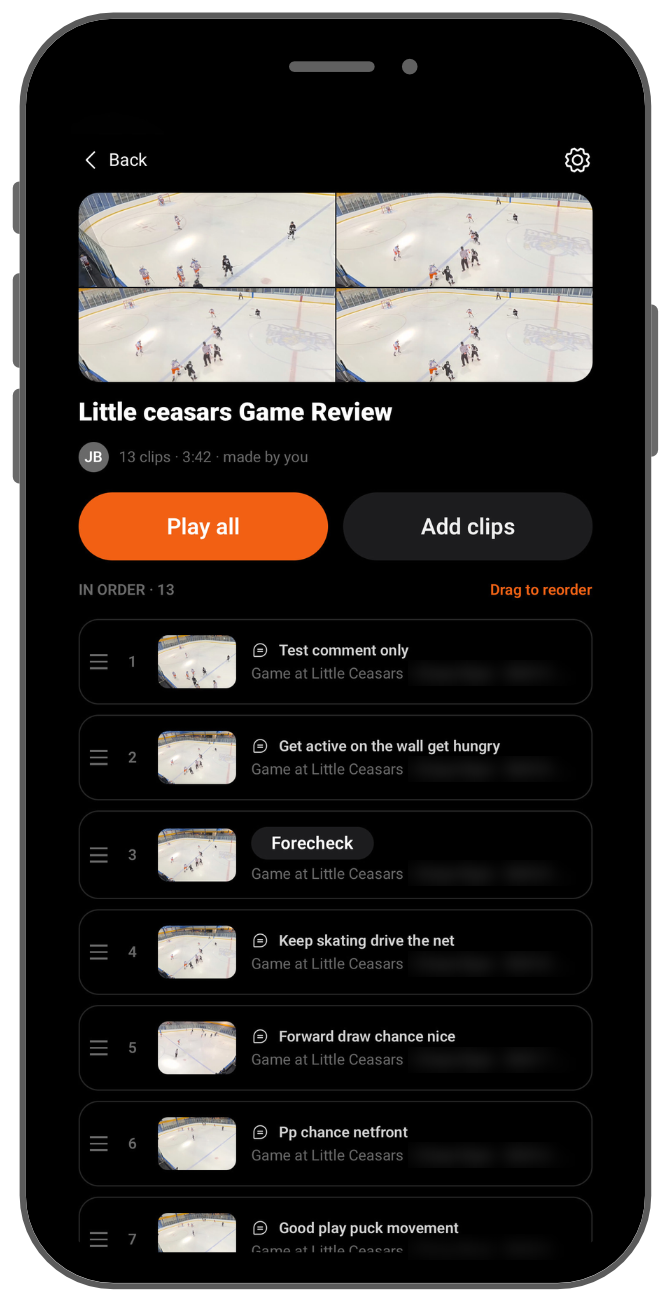
- Tap Play all to watch every clip in order.
- To change the order, press and hold the handle on the left of a clip and drag it up or down.
Sharing
Each playlist has its own sharing setting under Who can open it:
- Only me: nobody else sees it
- All coaches: every coach of your teams can watch
- Specific coaches: only the coaches you pick can watch
- All players: every player of your team can watch
- Specific players: only the players you pick can watch
A playlist someone shares with you appears in your own Videos > Playlists tab.
Players: your tags, comments and drawings are private by default. Sharing a playlist is how you send clips to a coach.
Coaches: anything you add to a player's video is visible to that player by default. To keep your clips private, go to Profile > Settings > Privacy and turn off Share Video Clips. You can then share clips by adding them to a playlist.
For more detail, see Video Sharing & Privacy: Who Sees What.
Rename, change sharing or delete
- Open the playlist.
- Tap the gear icon in the top right corner.
- Rename the playlist, change who can open it, or tap Delete playlist.
Deleting a playlist does not delete its clips. They stay in your Library. Anyone the playlist was shared with will no longer see it.
Need help? Email [email protected].