
Using the Videos Tab: Sessions, Library & PlaylistsUpdated 43 minutes ago
The Videos tab puts all of your HELIOS video in one place. You will find it in the tab bar at the bottom of the HELIOS App (version 5.0.0 or later).
At the top of the Videos tab there are three sections: Sessions, Library and Playlists.
Sessions
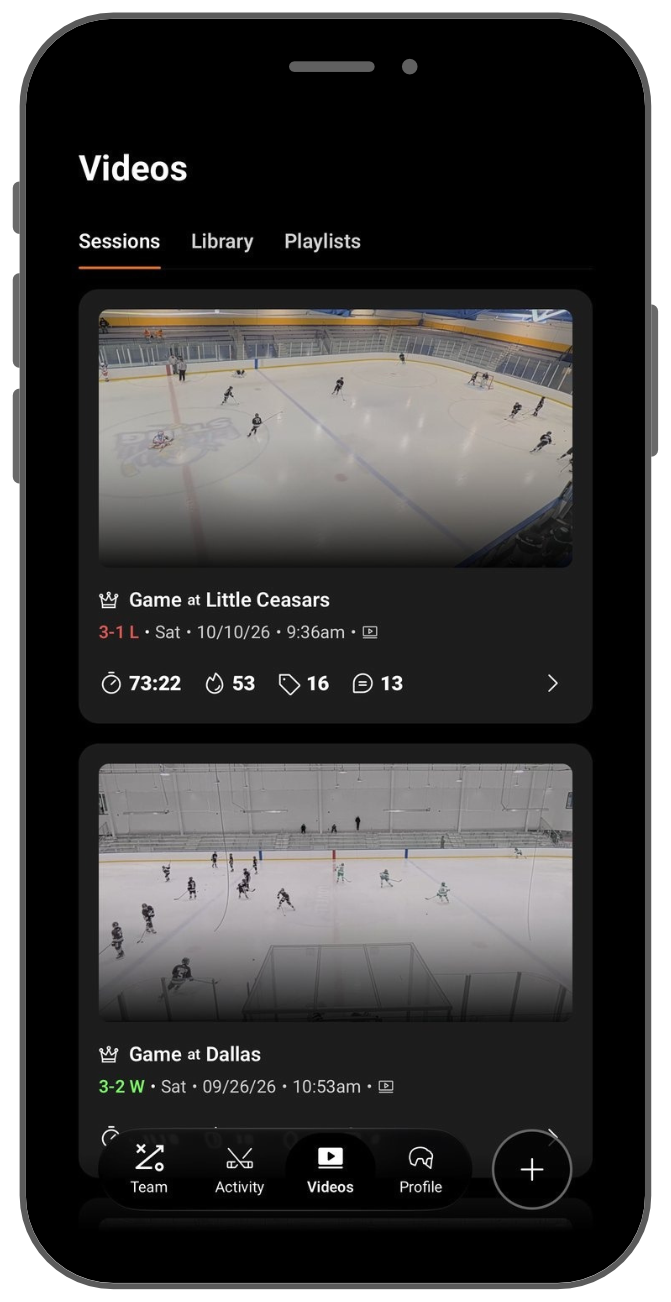
Sessions lists every game, practice or skills session that has video, newest first.
- Each session card shows how many tags and comments have been added so far.
- Tap a session to open it, then pick a shift or drill run to watch.
- Coaches see the sessions for the team they currently have active.
Library
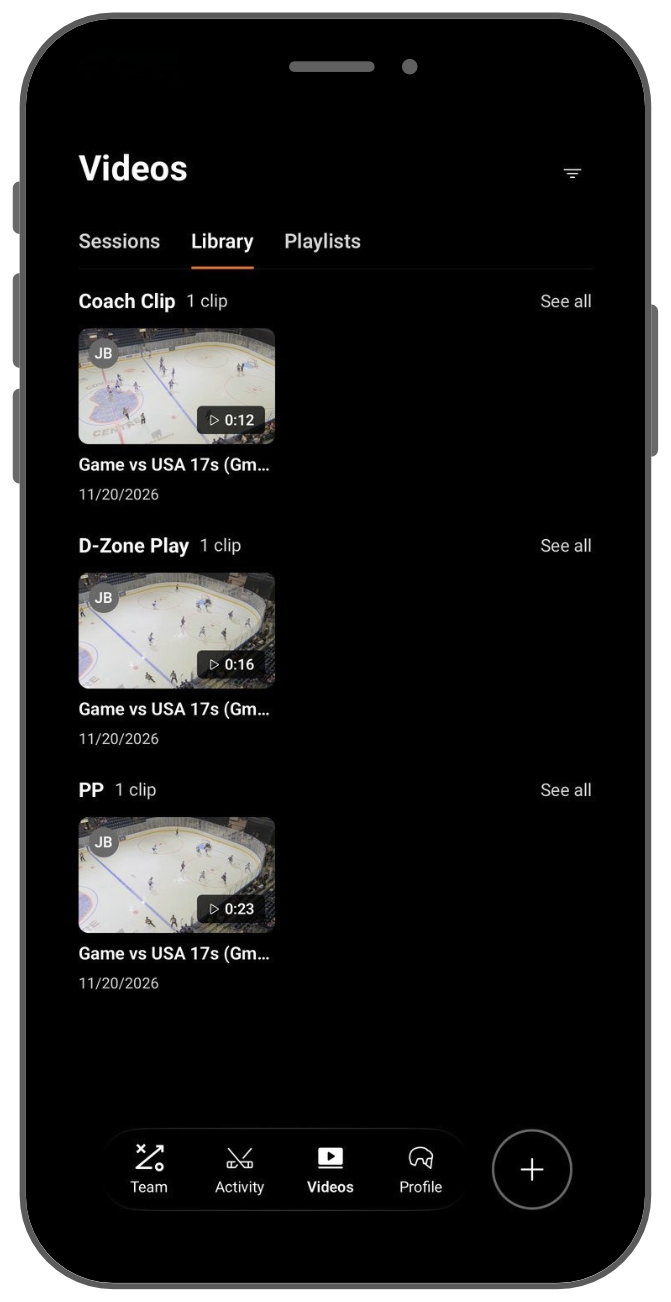
The Library is every clip that has been tagged, grouped by tag (for example Backcheck, Breakout or Coach Clip).
- Tap See all next to a tag to view every clip with that tag.
- Tap any clip to watch it. Tags, comments and drawings show up as the clip plays.
- Tap the filter icon in the top right corner to narrow the Library:
- Show: All, Tags or Comments
- When: choose a time range, such as your last game
- By: Everyone or Me
A clip only appears in the Library after it has been tagged. See How-To: Tag, Comment, & Annotate.
Playlists
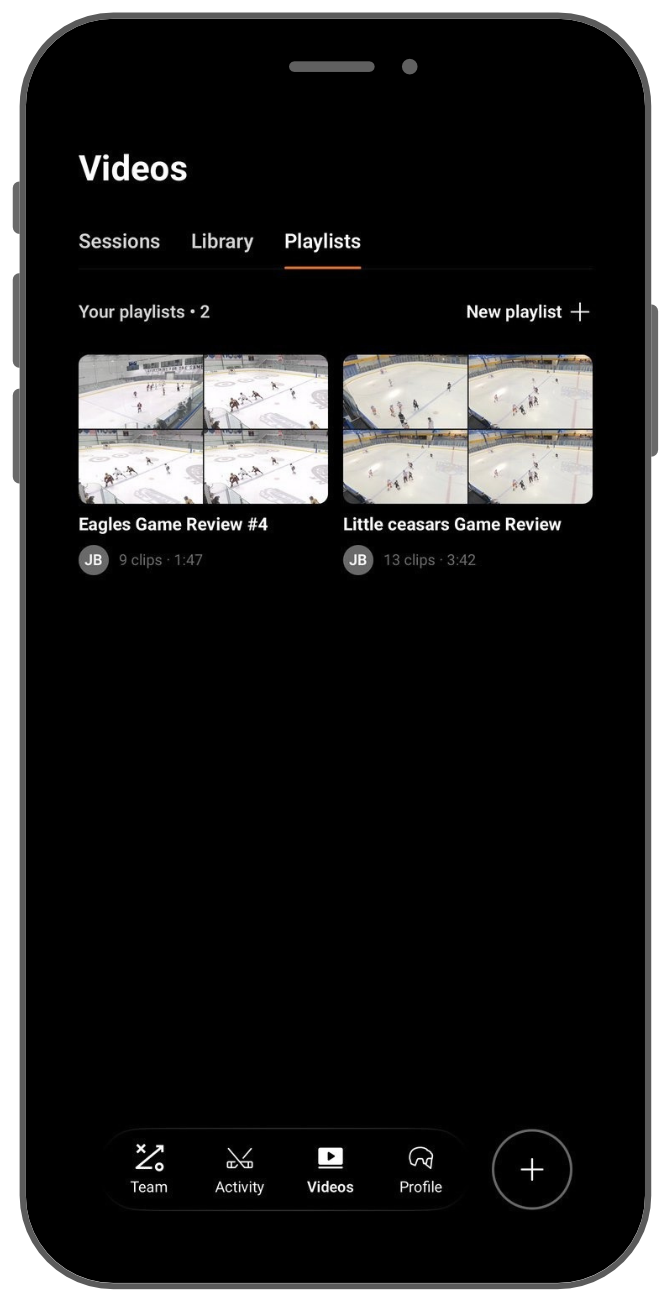
A playlist is your own set of clips, in the order you choose. Use playlists for a game recap, a skill you are working on, or a highlight reel.
- Tap New playlist to create one.
- Playlists that someone has shared with you also appear here.
See How-To: Create & Share Playlists.
Related articles
Need help? Email [email protected].